Article
How to build a domain reporting console with the EED API

API & DOMAIN REPORTING
Pull the domain lists that matter to you
A useful domain console starts with a clear question: which domains match the rules you care about? This guide shows how to turn those rules into a local reporting panel that searches Easy Expired Domains, displays the matching listings and exports a shortlist you can work with.
10 min read
The example is The Domain Goblin, the small browser-based app built in the accompanying video. You can download its source or use the supplied builder prompt to create a panel around your own workflow. Either route gives you a practical starting point for pulling specific domain lists into your own tools.
If your workflow currently involves scraping domains into spreadsheets, the Easy Expired Domains API gives you a direct way to retrieve structured inventory and available metrics. EED supplies the data; your console decides which rules to apply and how to present the results.
Watch the build and get the resources
The video follows the complete process: open a project folder, give an AI coding assistant the prompt, answer three questions, start the finished app, connect an EED key and run a search.
Watch the full domain console tutorial on YouTube.
- Download The Domain Goblin source code.
- Download the complete domain console builder prompt.
- Create and manage your EED API key.
- Read the EED API documentation.
The prompt download is hosted on this EED guides site. It contains the original Markdown prompt in a plain-text file: open it, copy the contents and paste them into your coding assistant.
What you need before you start
You need an eligible EED account with API access, an internet connection and a computer that can run Node.js. Check the API access page for your account’s current access and search allowance.
The published Domain Goblin source requires Node.js 24 or newer. Install a current supported LTS version from the official Node.js download page that meets that requirement. The app uses Node’s built-in server and browser files, so it has no third-party runtime packages to install and no separate frontend build step.
An AI coding assistant and an editor such as Visual Studio Code are useful if you are building from the prompt. The video uses Codex inside VS Code. Once the app has been built, the console runs locally without needing an AI service for each domain search.
1. Decide what your first report should find
Write down the type of domain you want before asking an AI to build the interface. “Find good domains” is too vague. “Find expiring .com and .co.uk domains with Trust Flow of at least 15, then let me review their traffic estimates” gives the panel a specific job.
A useful first recipe has three parts: an inventory type, a small set of filters and an ordering. For example, an expiry watchlist could use source=expiring, your preferred TLDs and minTF=15, ordered by Trust Flow. A cheap auction list could use source=auction and a price cap, ordered by price.
| Your reporting rule | EED API starting point |
|---|---|
| Show expiring domains | source=expiring |
| Restrict the extensions | tld=com,co.uk,net |
| Set a minimum Trust Flow | minTF |
| Set a minimum Domain Authority | minDA |
| Put the highest EED Quality Scores first | sort=quality&dir=desc |
| Filter on Semrush traffic estimates | minSemTraffic |
| Limit listing prices | maxPrice with a suitable inventory type |
| Exclude names containing hyphens | containsHyphen=no |
Keep the first recipe simple. Each extra condition narrows the result set, and an empty search is easier to diagnose when only a few rules are active. The documentation and runtime metadata list supported filters and combinations.
2. Build from the prompt, or start with the source
For a personalised build, open an empty project folder in your coding assistant and paste the complete builder prompt. It asks three questions: what you want to find, which rules the search should follow, and how you will use the panel.
Answer with concrete requirements. Mention your preferred extensions, minimum metrics, budget where relevant, and whether you mainly want to shortlist, export spreadsheets or present a report. You can also specify which columns should appear first.

The prompt covers more than the appearance of a dashboard. It tells the assistant to check EED’s API contract, keep the key out of saved files, distinguish live filters from local refinements, handle errors and produce a working local app. Keep those parts when adapting the brief.
If you want to follow the video with fewer setup decisions, download the Domain Goblin repository using Code → Download ZIP, then extract it. Its starter recipes are SEO sorcery, Backlink buffet and Domain dungeon; their rules remain editable. The repository’s defaults and the later demonstration search are different, so check the active rules before searching.
3. Start the panel on your computer
In the extracted Domain Goblin folder, Windows users can double-click Start Goblin.cmd. Alternatively, open a terminal in that folder and run:
node server.mjsOpen the address printed by the server. The published source uses:
http://127.0.0.1:8787Use that exact address for this version of the app. Keep the terminal open while you work, and press Ctrl+C there when you want to stop the server. If you build a separate console from the prompt, use the start command and address supplied with that build.
The basic arrangement is straightforward: browser panel → local Node server → EED API → results table. The browser handles the controls and reporting; the local server forwards the search to EED and returns the response. This keeps the integration in one place and avoids relying on a browser-to-EED connection that the API may not permit.
4. Connect your EED API key
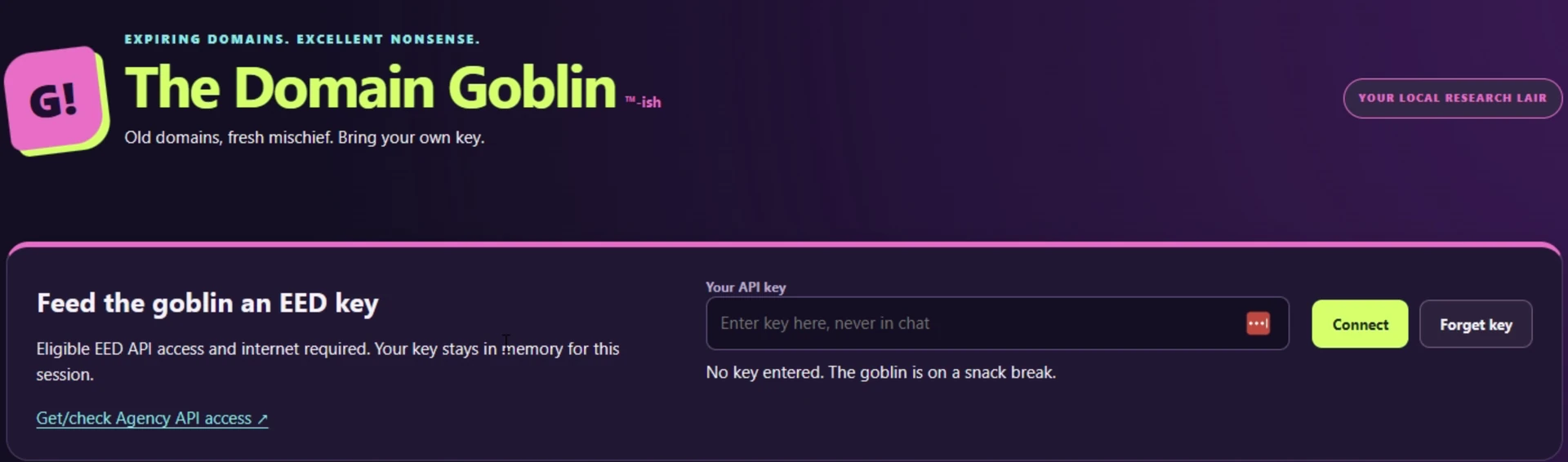
Open EED API access, create a labelled key for your console and copy it when it is shown. Paste it into the app’s masked key field and select Connect.
In Domain Goblin, Connect records the key for the current session. The first successful search confirms authentication. An entered key should never be presented as proof that an API request has worked.
The console forwards the key in an Authorization: Bearer or X-EED-API-Key header. Keep it out of search URLs, source code, exported reports and browser storage. The supplied app keeps it in memory for the session and provides a Forget key action.
Successful searches use your EED search allowance, including searches with no matches. Start with one page and an explicit Search button. Re-sorting downloaded rows or exporting them should reuse the data already loaded.
5. Run a search with clear, repeatable rules
The video demonstrates a broader search across all inventory types. It uses keyword domain, TLDs com, co.uk and net, minimum age 10, minimum Trust Flow 10, and EED Quality Score ordering.
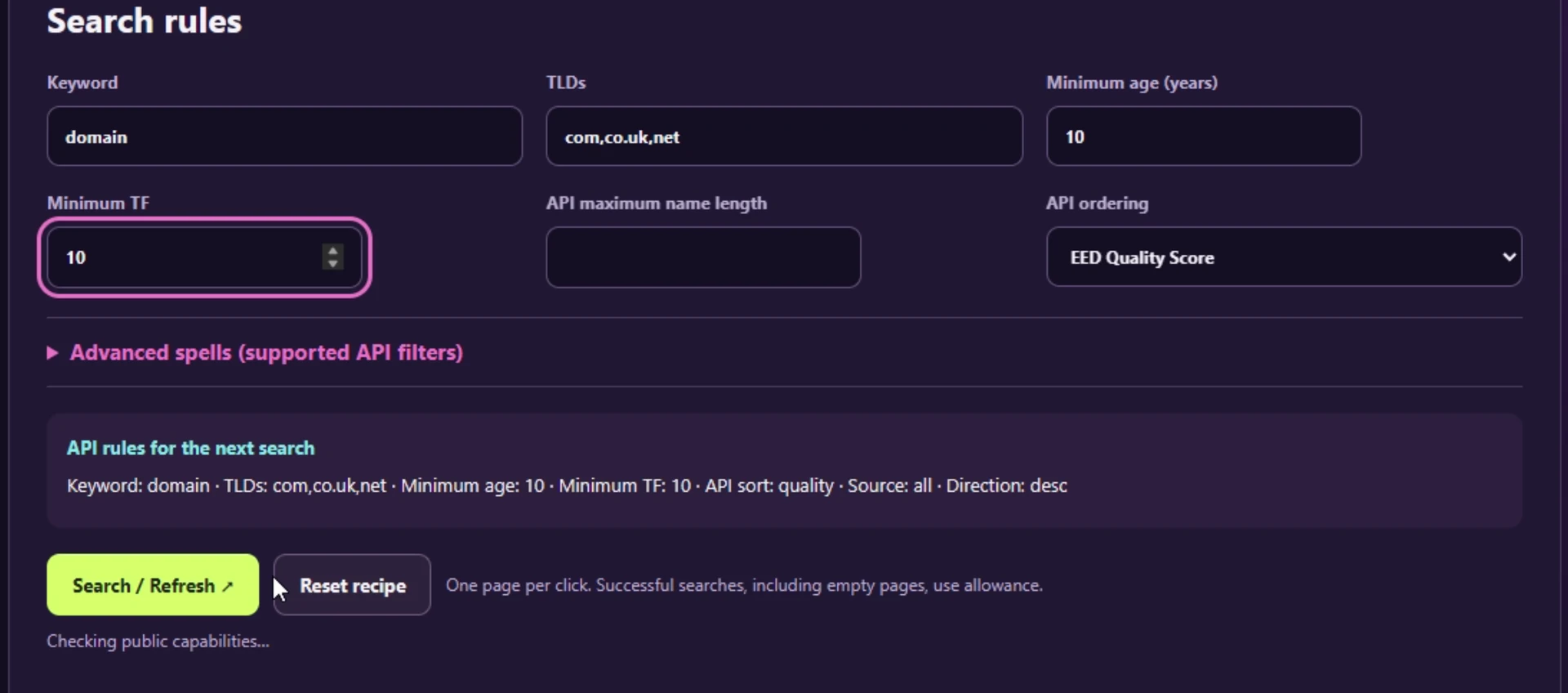
Those settings translate to the JSON endpoint below. The line breaks are for readability; the query is sent as one URL, with the API key in a separate header.
GET https://easyexpireddomains.com/api/v1/domain-search.php
  ?q=domain&source=all
  &tld=com,co.uk,net
  &minAge=10&minTF=10
  &sort=quality&dir=desc
  &pageSize=100&page=1
For an expiring-only report, change source=all to source=expiring. For a traffic-focused report, add a supported traffic filter that matches the measurement you intend to use. The video’s demonstration query does not add a minimum traffic condition.
The response contains a results array plus pagination and credit information. Your panel should read the supplied fields: for example, metrics.majestic.tf for Trust Flow, metrics.moz.da for Domain Authority and qualityScore for EED’s Quality Score.
6. Turn the results into a useful report
A reporting panel should make the next decision easier. Start with readable columns for domain, inventory type, provider, TF, DA, QS, age and available listing price. Put additional metrics and destination links in a details view so the main table stays manageable.
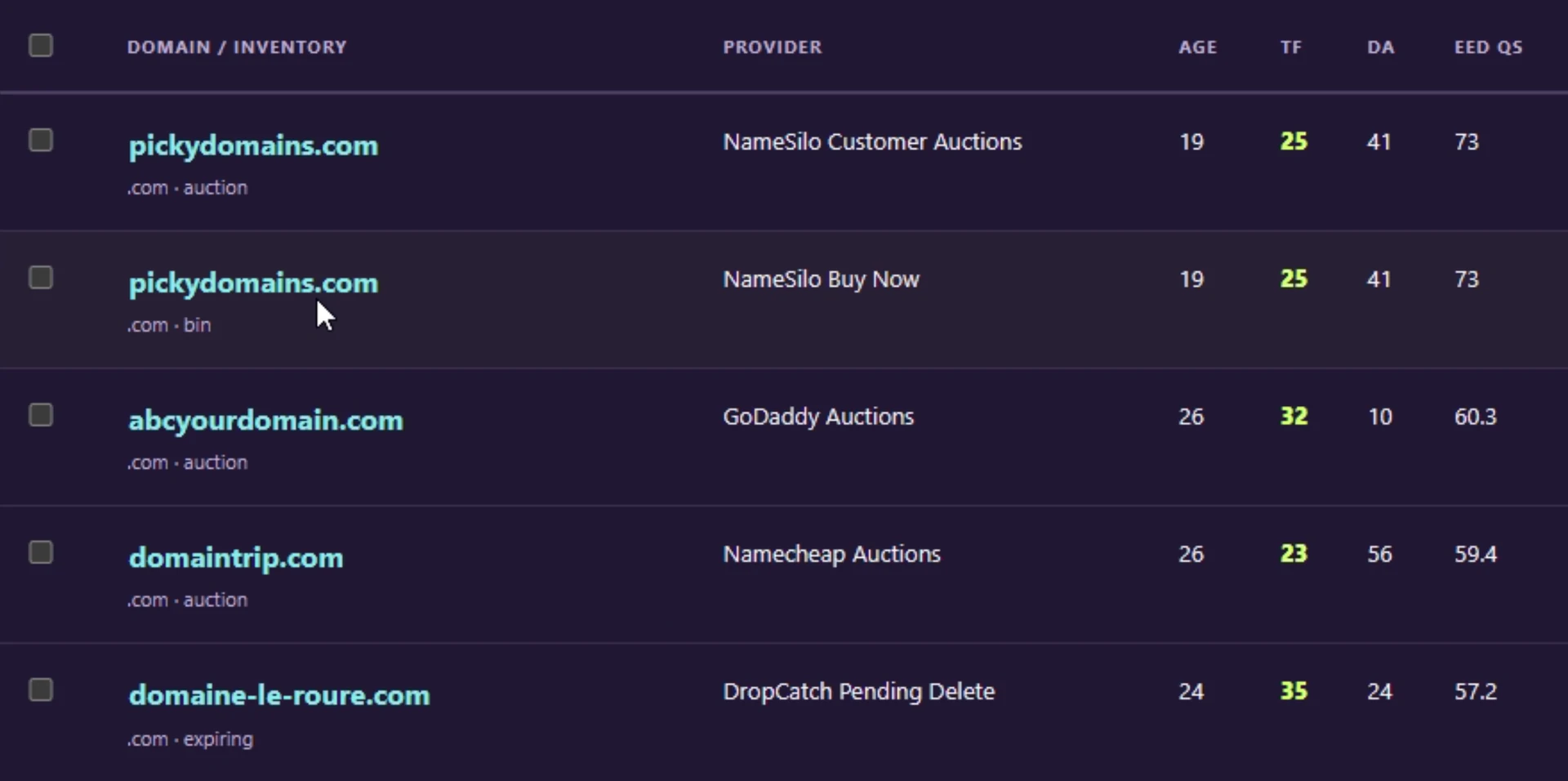
Keep the inventory type visible. The same domain can appear in more than one listing, with different prices or buying routes. Those rows represent separate listings. The price column should use the actual listing price and currency; a traffic-value estimate is a different measurement.
Show a fetch time alongside the rules that produced the data. If you change a filter, make clear whether the table still shows the previous search. Keep unavailable metrics distinct from confirmed zeroes, and label event dates according to their inventory type.
Domain Goblin lets you save domains to a shortlist and add notes. It also exports loaded or selected rows as CSV, domain-only text and JSON, with a printable shortlist and an offline HTML report. Exporting already loaded rows does not need another EED search.
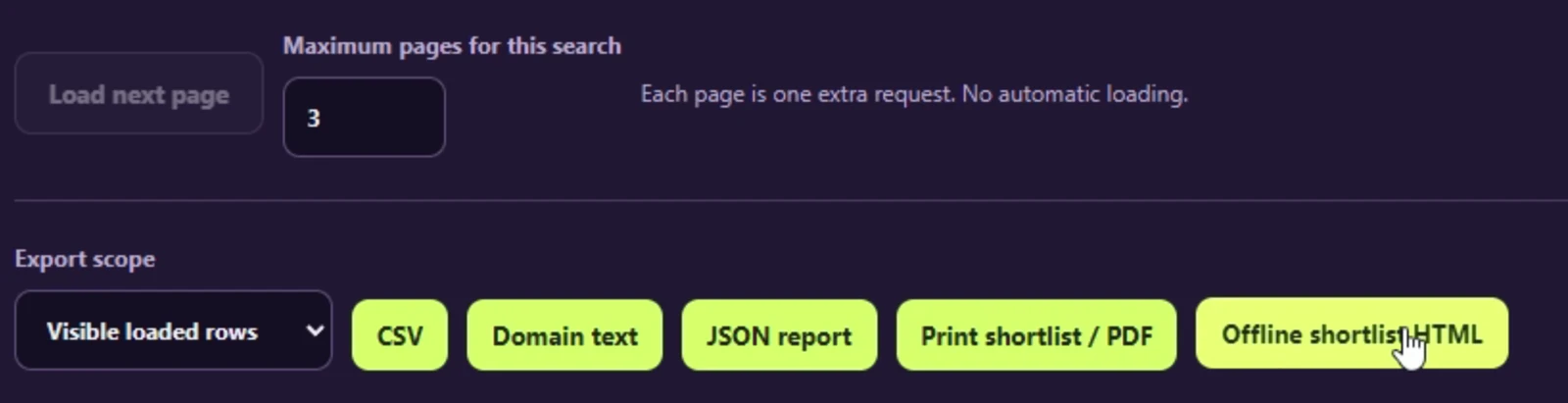
If more pages are available, label a loaded-row export as partial. A separate live text-endpoint request uses allowance; a local export of the table does not. Include the search rules and fetch time in the report or accompanying metadata so you can reproduce the list later.
TF, DA, QS and traffic estimates help you prioritise research. They do not confirm current visits, clean history, registration availability or a profitable purchase. Use the shortlist as the start of your domain review.
7. Save recipes and extend the panel gradually
Once one search works, save it as a named recipe. A few focused presets are often more useful than a large dashboard: an expiry watchlist, an auction budget list and a niche-specific search each answer a different question.
Handle pagination deliberately. The API returns hasMore, nextPage and truncated information; use those fields to offer Load more. Each successful additional page is another search, so fetch sequentially and let the user control how much to load.
Your error messages should also tell the user what to do next. An invalid filter needs correction; a missing or restricted key needs attention to access; a temporary rate limit may include Retry-After. Keep the previous table visible when a refresh fails, but mark it with its original fetch time.
The video discusses email notifications, WhatsApp alerts and feeding results into another backend as possible extensions. They require further implementation. Establish a reliable manual search and report first, then add the integration that fits your workflow.
Check your first report
Your first working domain report
Questions about building a domain console
Do I need to scrape the EED website?
Use the API’s documented search endpoints for this panel. They return structured results that the console can display and export, with supported filters and response metadata.
Can I build this without an AI coding assistant?
Yes. Download the source, meet its Node.js requirement and follow the start instructions. An AI assistant is useful for a fresh build or changes to recipes, columns and reporting views.
Does the console store my shortlist after I close it?
The supplied app stores presets, shortlist notes and historical snapshots in that browser’s local storage. The key and current search results are not persisted. Use JSON backup and restore to move saved work between browsers or computers, and fetch again to check current listings.
Can I put the panel on a public website?
A hosted version needs further work, including HTTPS, appropriate authentication and separate user sessions. The supplied app is designed to run locally. Treat public hosting as a separate development task.
Build your first domain list
Choose one useful recipe, connect your key and retrieve a single page. Review a handful of candidates, add notes and export the report. That gives you a complete workflow to improve as your needs become clearer.
Start with the source code or the builder prompt, and keep the EED API documentation beside you when you change the rules.
Connect your own domain workflow
Create a labelled API key, then use your console to retrieve the domain lists that fit your research.